Home·Apps·HyperDrop
AirDrop stops where Apple stops. If there's a Windows laptop or an Android phone on the other side, the fumbling begins: email too large, messenger compresses it, cloud wants an account, and nobody has a cable handy. HyperDrop closes exactly that gap — with a QR code that every browser understands.
A QR code is enough — the rest is just a browser
60 photos came out of a party, and a guest would love to have them — but has an Android phone. You select the pictures, tap Start Sharing, and hold up the QR code. They scan it, get a page with all the photos, and download them — at full resolution, as many and as large as they are.
Nothing gets installed or set up on their device for this. A browser is all it takes, and every phone, every Windows machine, every Mac and every Linux PC has one. Anyone who can't scan the code just types in the address shown.
This works in both directions: the same page has an area for sending files back, with file selection or drag and drop. That's how files from a Windows PC land on your iPhone — the direction that's usually the most awkward.
If there's another iPhone with the app on the other side, it's even more direct: tap the device, send. This connection uses Bluetooth and direct Wi-Fi, so it needs no network at all — it works on a train, in the woods, or on a plane.
How it works
iPhone
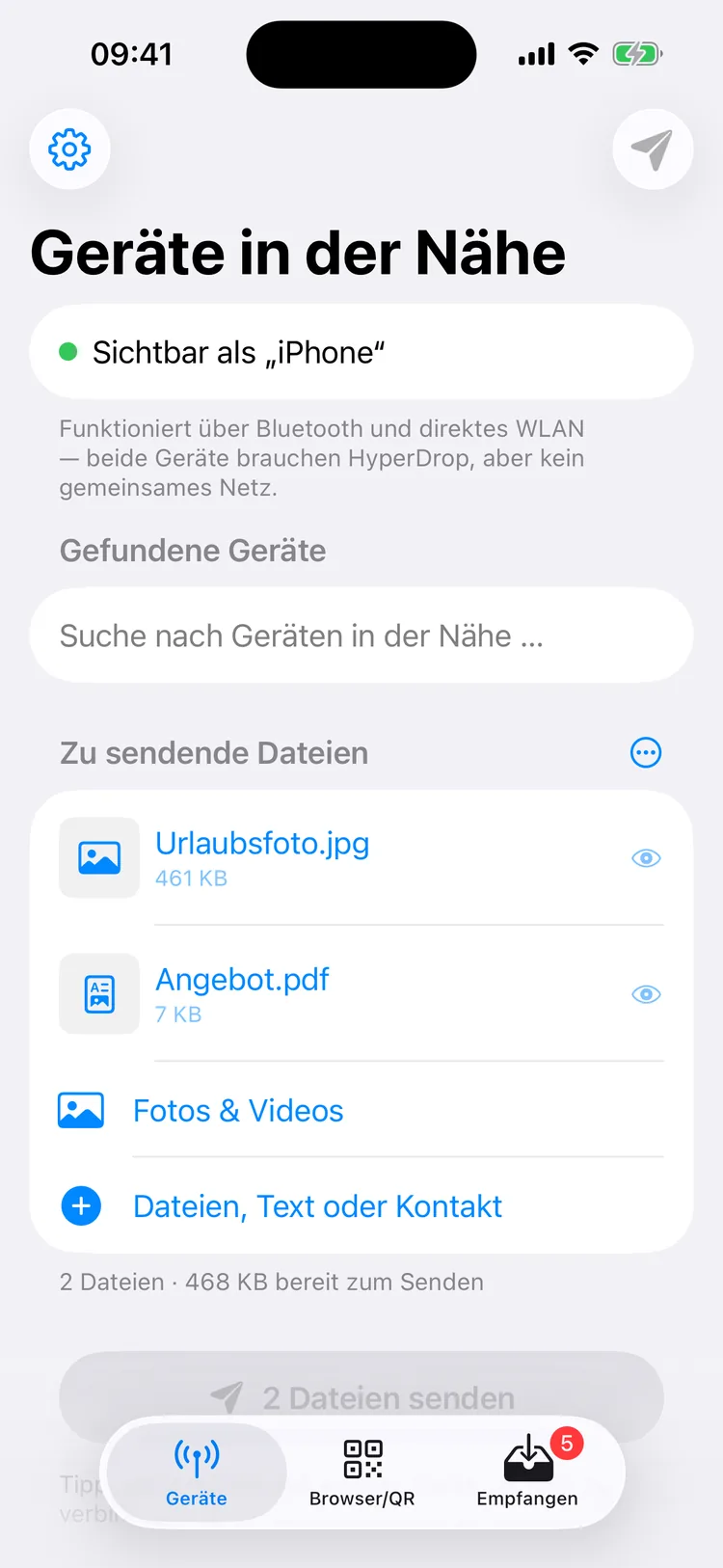
No onboarding screen, no account setup — the app opens straight to "Nearby Devices." At the top, in green, is the name you're currently visible under.
Under "Files to Send" you choose: photos and videos from your library, any files, text, a link, or a contact card. Below it tracks what you've added — something like "2 files · 468 KB ready to send."
iPhone
If the other side has an iPhone with the app, you tap it under "Devices Found" and press send. Done.
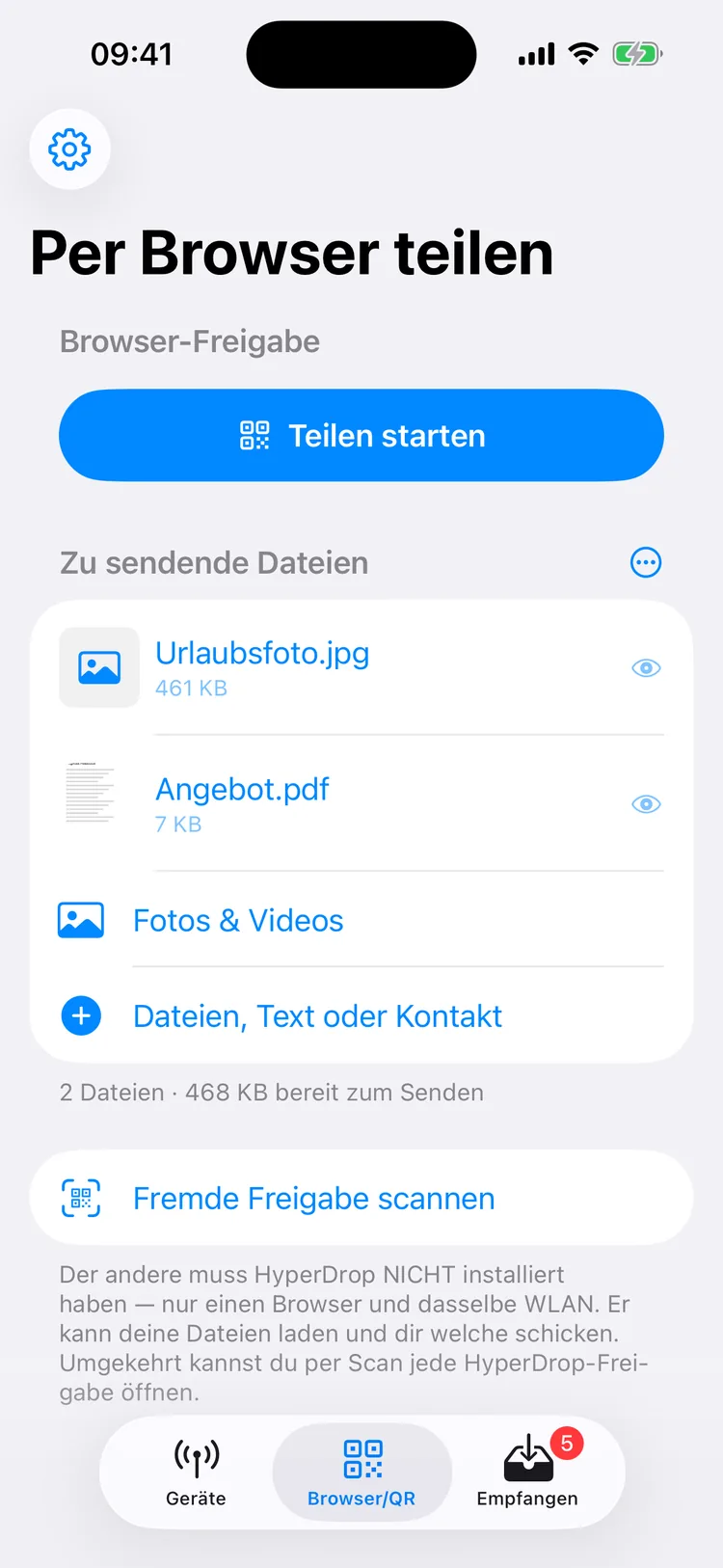
If they don't — Windows, Android, Mac, Linux —, you switch to "Browser/QR" and press "Start Sharing." A QR code and an address appear. The other person scans or types it in, and the files are ready in their browser.
iPhone
3
Arriving — and actually saved
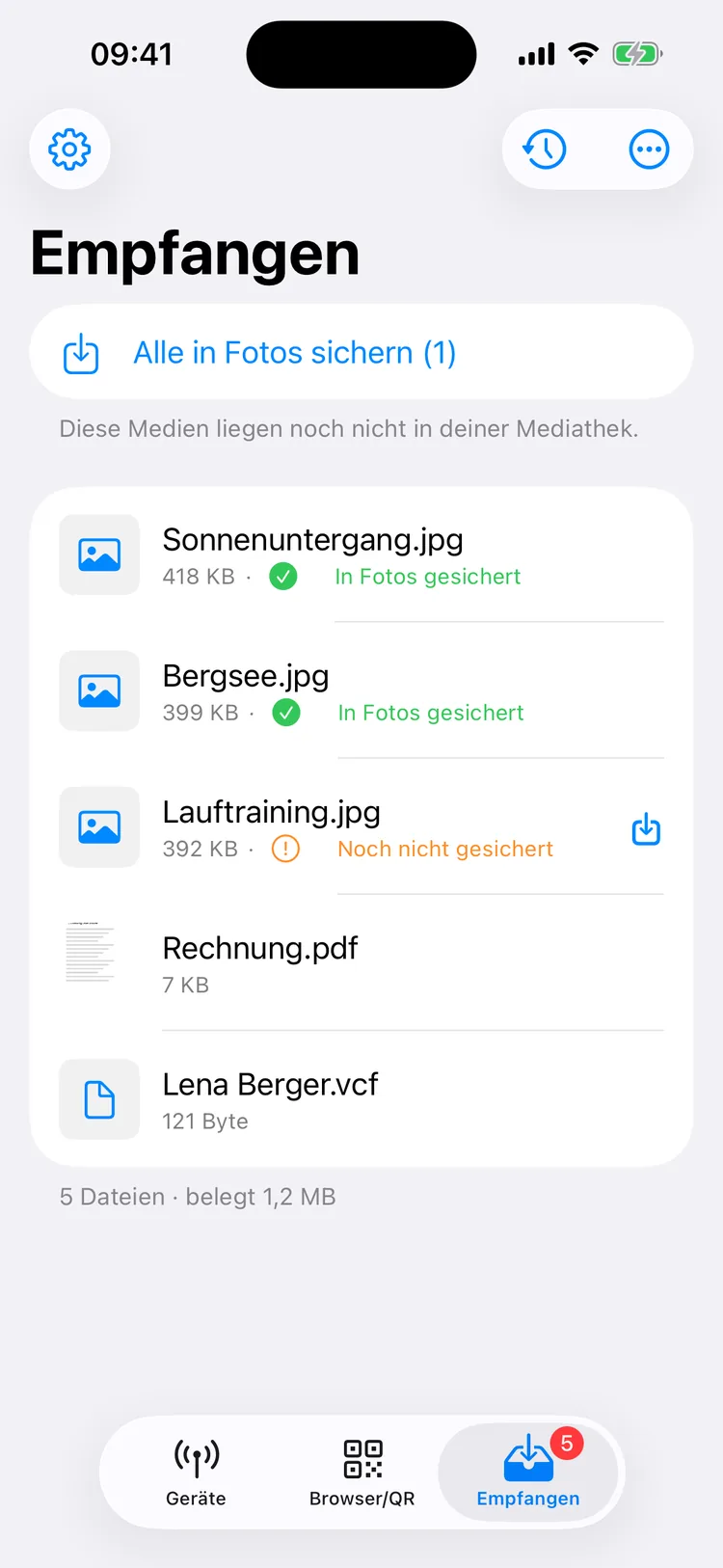
Received items land in the third tab. Photos and videos go into Photos automatically, and the app tells you for each file: green "Saved to Photos" or orange "Not saved yet" with a button right next to it.
That's the distinction many transfer methods leave out: received and safely in your gallery are two different things. PDFs, contacts and archives can't go into Photos and stay in the list.
iPhone
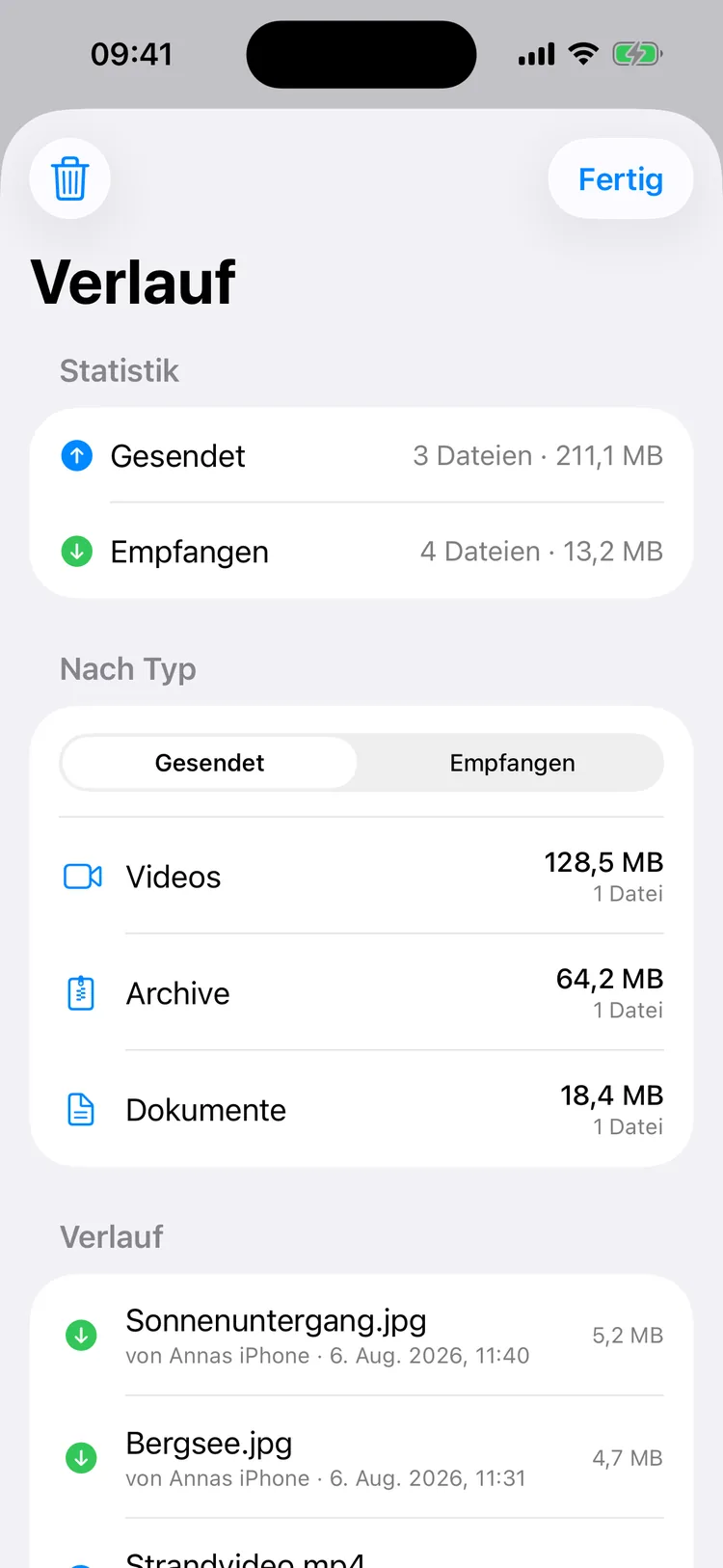
History, behind the clock icon, shows every transfer with the other party, date, time and size — and the totals above it: how much was sent, how much received.
The breakdown by type (videos, archives, documents, images…) can be switched between sent and received. The last 500 entries are kept; you can delete them at any time.
iPhone
5
Set it once, then forget it
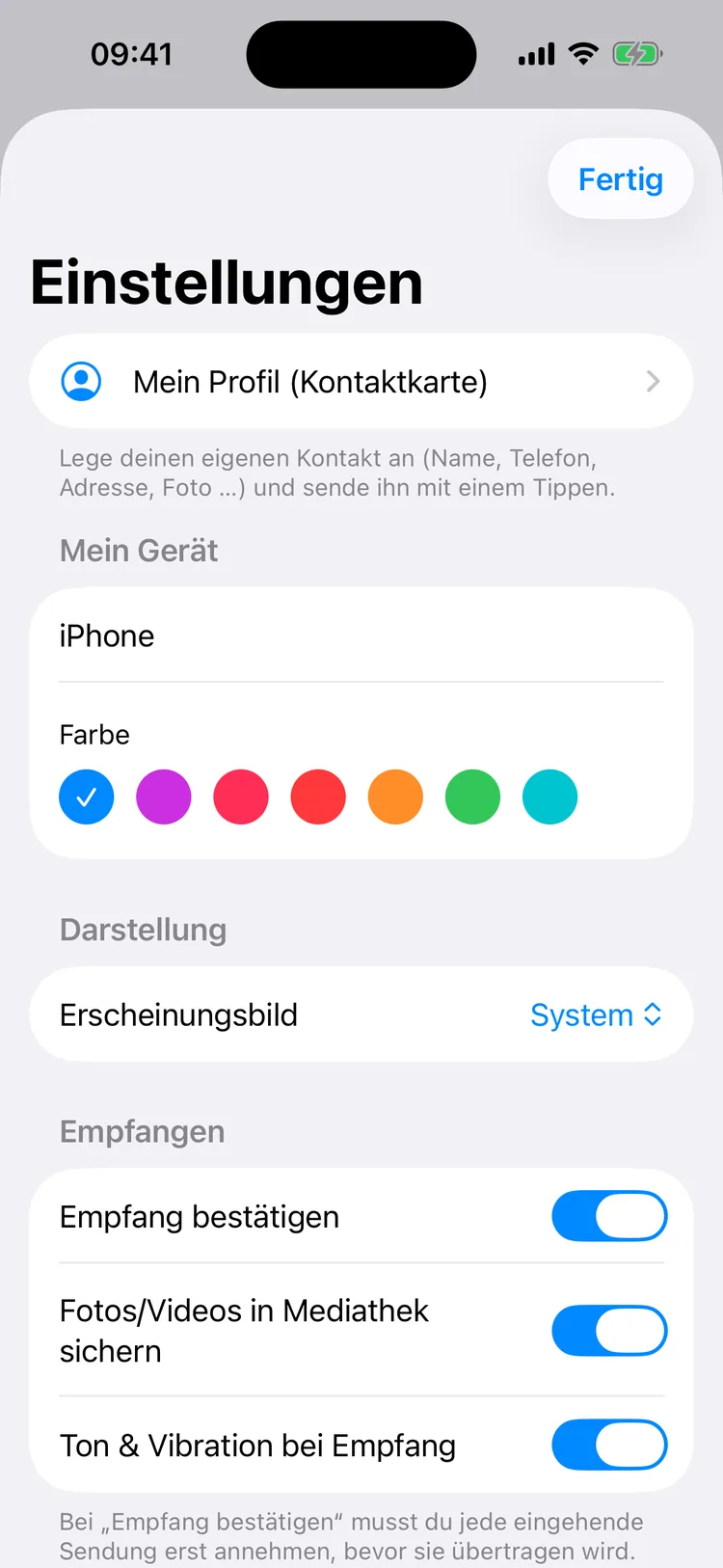
Here you set your device name and a color others will recognize you by — plus, optionally, your own contact card that can be sent with a single tap.
The important toggles start on sensible defaults: incoming transfers must be confirmed, photos are saved automatically, and you get a sound and vibration on receipt. If you want smaller HEIC photos, you can turn on JPEG conversion.
The names and files in these images are made up — not real contacts, not real transfers.
Two modes — and when to use which
The app does the same thing in two completely different ways. Which one fits depends only on what's on the other side.
| | Device Mode / Browser Mode |
|---|
| The other side needs the app | Yes / No |
| Works without Wi-Fi | Yes / No, shared network required |
| Encrypted | Yes / No |
| Works with Windows, Android, Linux | No / Yes |
| Return path to iPhone | Yes / Yes |
Device mode is the stronger option between two iPhones: it combines Bluetooth with a direct wireless connection between the devices, so it needs no network at all. In plain terms: on a train, in the woods, on a plane — as long as both have the app open, it works. This connection is encrypted.
Browser mode is the broader option: it reaches anything with a browser. In exchange, it needs a shared local network — a Wi-Fi network or your iPhone's personal hotspot — and transfers unencrypted.
Browser mode in detail
When you start sharing, your iPhone briefly opens a small web server and shows a QR code along with an address like http://192.168.1.42:8080. The recipient scans or types it in and sees a simple page with the files — downloadable individually or all at once.
Three things about it are well thought out, even if you don't see them:
- The hotspot works too. If there's no Wi-Fi at all, the other device can join your iPhone's personal hotspot — the app finds the right address in that case too. That means it works on the go with no outside network needed.
- The page updates itself. If you add more files to the share on your iPhone, they show up in the other side's browser automatically — nobody needs to reload.
- The page speaks the recipient's language. It's available in the same twelve languages as the app and picks one based on the browser's settings; if it doesn't recognize a language, it shows English.
The page is a single, self-contained file with no parts loaded from outside servers. It doesn't pull in anything from the internet — after all, it also works on a network with no internet access at all.
The return path: the PC sends back
This gets overlooked regularly and is the real trick: browser mode works in both directions. The same page has a "Send to Device" area with file selection and drag and drop.
So a Windows PC can send files to your iPhone without installing or setting up anything there. The exact direction that's usually the most awkward — from computer to iPhone — becomes as simple as dragging files into a browser window.
What you can send
- Photos and videos from your library, any number at once.
- Any files through the Files app — any file type, with multi-select.
- Text and links, which arrive as a text file.
- Contacts — your own card or someone from your address book, as a standard .vcf file.
- Multiple items bundled as a ZIP archive, when you want it to arrive as one piece.
You can also send to several recipients at once. During the transfer you see the progress for each file, with speed and estimated time remaining, plus an overall counter. If something fails, the app retries it up to three times — you can turn that off if you'd rather it didn't.
The app also plugs into iOS's share sheet: from Photos, Safari, Files, or any other app, you can hand things straight over to HyperDrop.
Received doesn't mean saved
With most transfer methods, the received file sits somewhere in an app folder, and whether it makes it into your gallery is something you only find out when you go looking. This app turns that into a visible status instead.
By default, photos and videos are saved to Photos automatically. In the list, every file shows either "Saved to Photos" in green or "Not saved yet" in orange — with a button to catch up, and, if several are still pending, a button at the top to save them all.
Then there are the practical small touches: thumbnails in the list, full-screen view with a tap, swipe gestures for deleting, sharing and saving, multi-select with an action bar, and a line at the bottom that says how many files there are and how much space they take up. If you're on a different tab when something arrives, you get a banner with "View."
History and statistics
Every transfer lands in your history, with the other party, date, time and size. Above it are the totals for sent and received, each with count and data volume, and below that a breakdown by type — images, videos, audio, documents, archives, contacts, other — switchable between both directions.
The last 500 entries are kept; older ones drop off automatically. You can clear your history at any time with one button.
What the app does with file names
An unassuming topic that decides between a smooth transfer and a broken one — because not every name that works on one device also works on the other.
- Characters that cause trouble in file names — like slashes and colons — get replaced with hyphens.
- Very long names get shortened instead of letting the transfer fail.
- If someone uploads a photo from a browser, it often arrives as just a long string of characters. The app recognizes that and turns it into a readable name with date and time.
- If the file extension is missing, the app looks at the first bytes and figures out from those whether it's a JPEG, PNG, GIF, PDF, MP4, or ZIP.
The result: your received list shows names you can actually read, and files that open — instead of "IMG_4711.HEIC" or a string of characters with no extension.
Security: what's encrypted and what isn't
Here, being clear matters more than a marketing promise, so here it is in detail:
Device mode between two devices with the app is encrypted. The connection is established by Apple's own technology, and the app explicitly requires encryption.
Browser mode is not encrypted. It runs as an ordinary connection on the local network. On a network where you don't know anyone — a hotel, a café, an airport — someone could theoretically read along. So only use it on networks you trust, or use device mode or your own hotspot there instead.
Separately from that: by default, incoming files must be confirmed. Nobody can drop files onto your device unasked — a prompt appears first, showing the sender, count and size.
HyperDrop transfers files directly between devices on the local network, or over Bluetooth. No content is stored on any server. No liability is assumed for the transferred content, or for its completeness, accuracy, and successful delivery. Use is at your own responsibility; only use browser mode on trusted Wi-Fi networks.
What sets this app apart
The other side doesn't need to install anything
A QR code and a browser are enough. That covers Windows machines, Android phones, Macs, Linux computers, and even TVs with a browser — spontaneously, with nobody setting anything up beforehand.
Directly from device to device
Data takes the shortest path: from here to there, with no stops in between. That's why even a 4 GB video file goes through in one piece — there's no attachment size and no storage plan setting the limit.
No network, when it has to be that way
Between two devices with the app, Bluetooth and direct Wi-Fi are all it takes. That's the part almost nobody expects — and the one that makes the difference on a train or up a mountain.
At full resolution
What arrives is the original file. No recalculating, no compression, no loss of quality — the photo looks exactly the same on the other device as it does on yours.
Clear status instead of silent failures
The save status tells you, for every file, whether a photo has actually made it into Photos. And if two app versions don't match, the screen tells you which side needs to update.
What it costs
The app is completely free. Every feature on this page is available from the first second.
The app is about 2.6 MB and runs on iPhone and iPad from iOS 17, with its own layout on iPad. The interface is available in twelve languages: German, English, Spanish, French, Italian, Dutch, Portuguese (Brazil), Japanese, Korean, Swedish, Turkish and Indonesian.
What this app is not for
No receiving while the app is closed. Both sides need to keep it open; that's why the screen stays on during a running browser share. There's no service waiting in the background — after all, there's no server either.
No transfers over distance. The devices need to be within wireless range or on the same local network. Sending something to someone in another city isn't possible this way.
No storage service. The app doesn't keep anything or sync anything between your devices. It's the road, not the warehouse.
No resuming where it left off. If a large file fails, it's retried — but from the beginning.
There's no Android version (the other side doesn't need one anyway), no Apple Watch app and no Mac app, no widgets and no Shortcuts. And no syncing over iCloud.
HyperDrop is an independent product by Johann Brockstedt and has no affiliation with Apple Inc., Google LLC, or Microsoft Corporation. Apple, AirDrop, iPhone, iPad, Mac, iOS and App Store are trademarks of Apple Inc.; Android and Google are trademarks of Google LLC; Windows and Microsoft are trademarks of Microsoft Corporation. These names are used solely to describe which devices the app works with.
Your files stay on your devices
All content stays on the devices involved, and the transfer runs directly between them — no server, no stopover.
Stored on your device are the received files, the files queued to send, the transfer history and your settings, including your optional profile. All of that can be deleted within the app, and deleting the app removes it completely.
If you'd rather received photos not land in Photos automatically, you can turn that off in Settings.
Full texts: Privacy Policy and Imprint.