Home·Apps·Swiperoll
Twelve thousand pictures, and you never get around to starting. Swiperoll breaks the pile into single decisions that each take one swipe — and keeps every one of them reversible until you press delete yourself.
A second per picture
One picture fills the screen. You swipe left if it should go, and right if it stays. A swipe up sets the favorite star — the same one the Photos app uses. The next picture is already there.
What separates this from cleaning up inside the Photos app is not the technology but the size of the task. Instead of a grid of a thousand thumbnails where there is no obvious place to begin, there is exactly one question on screen. That one is answered in a second, and so is the next.
How it works

iPhone
1
One picture, two directions
The photo sits large on the card, with no controls covering it. Left to sort out, right to keep, up into the favorites — the gesture follows your hand instead of a menu.
If you would rather tap, the buttons below do the same thing. Both routes reach the same result, and both work one-handed.

iPhone
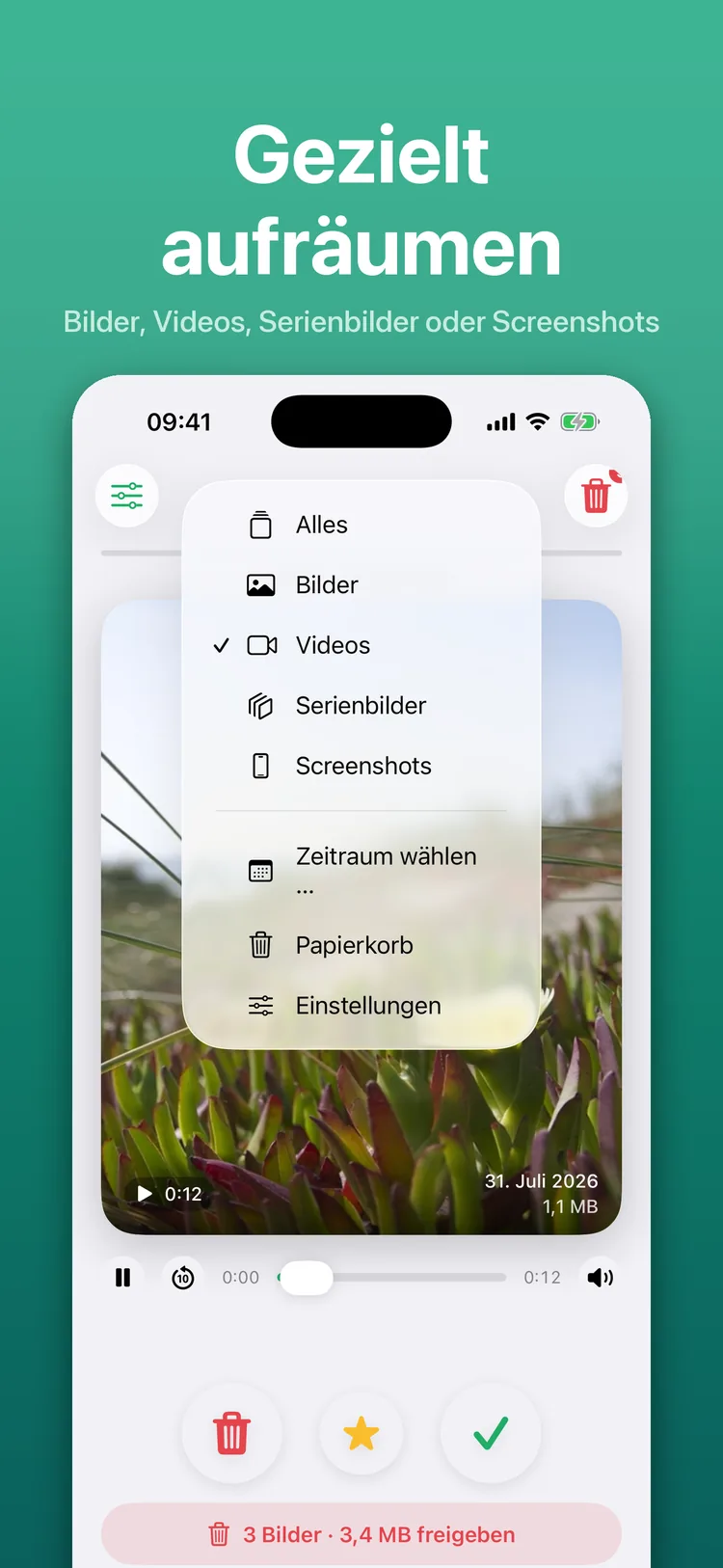
A video starts on the card, with sound and a scrubber. You do not have to open it first to see whether the footage is any good.
With videos that pays off twice over: they are the largest files in the library, and a still frame will not tell you that the first three seconds are shaky.
iPhone
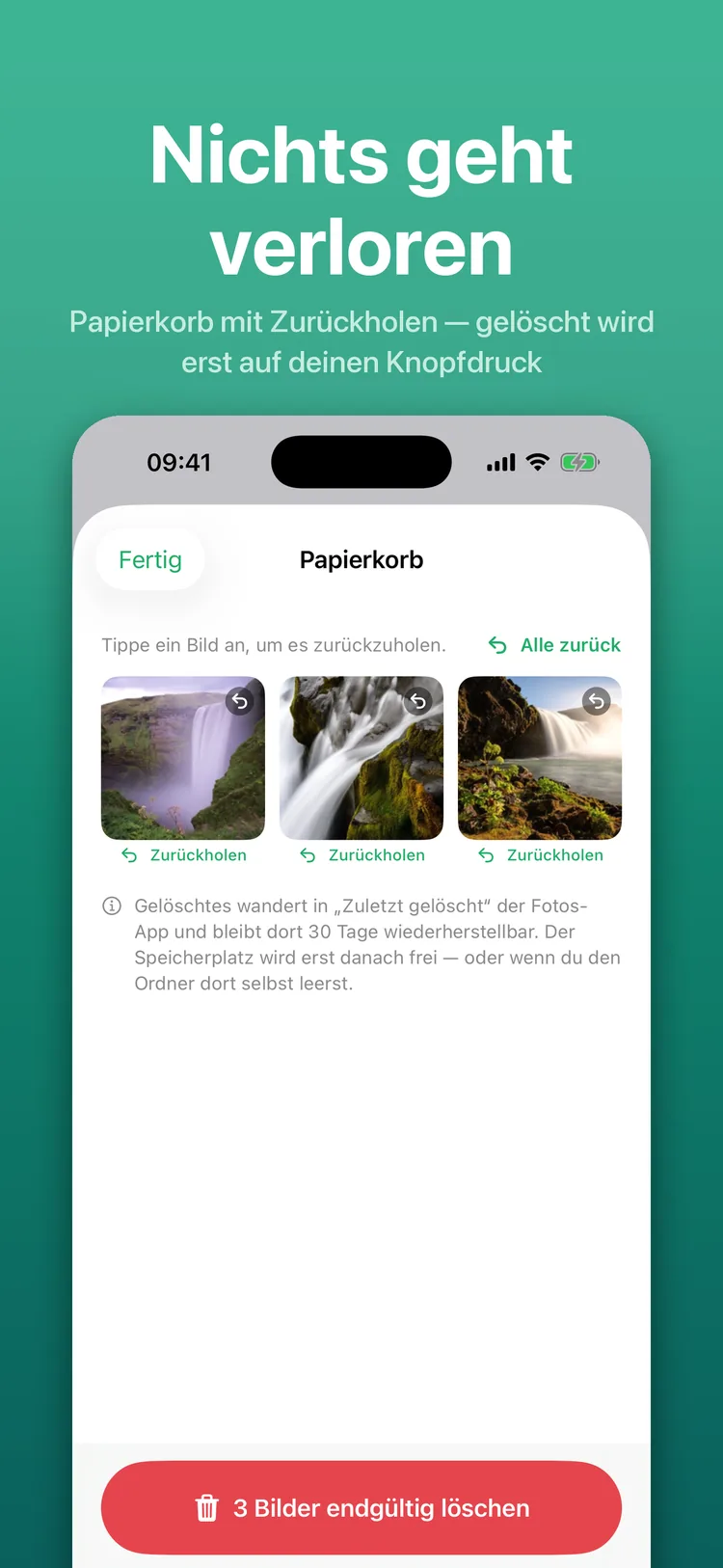
Sorted-out items land here first and stay visible. One tap puts a picture back into the library as if nothing had happened.
Only the button at the end deletes the whole batch — and iOS asks once for all of them, not once per picture. That is the difference between five minutes and fifty system dialogs.
iPhone
4
You decide what is in the stack
Videos only, screenshots only, bursts only — or everything together. Plus the order: by date, or by file size.
Sorting by size is the fastest route to free storage. The ten largest videos often weigh more than a thousand photos.
iPhone
5
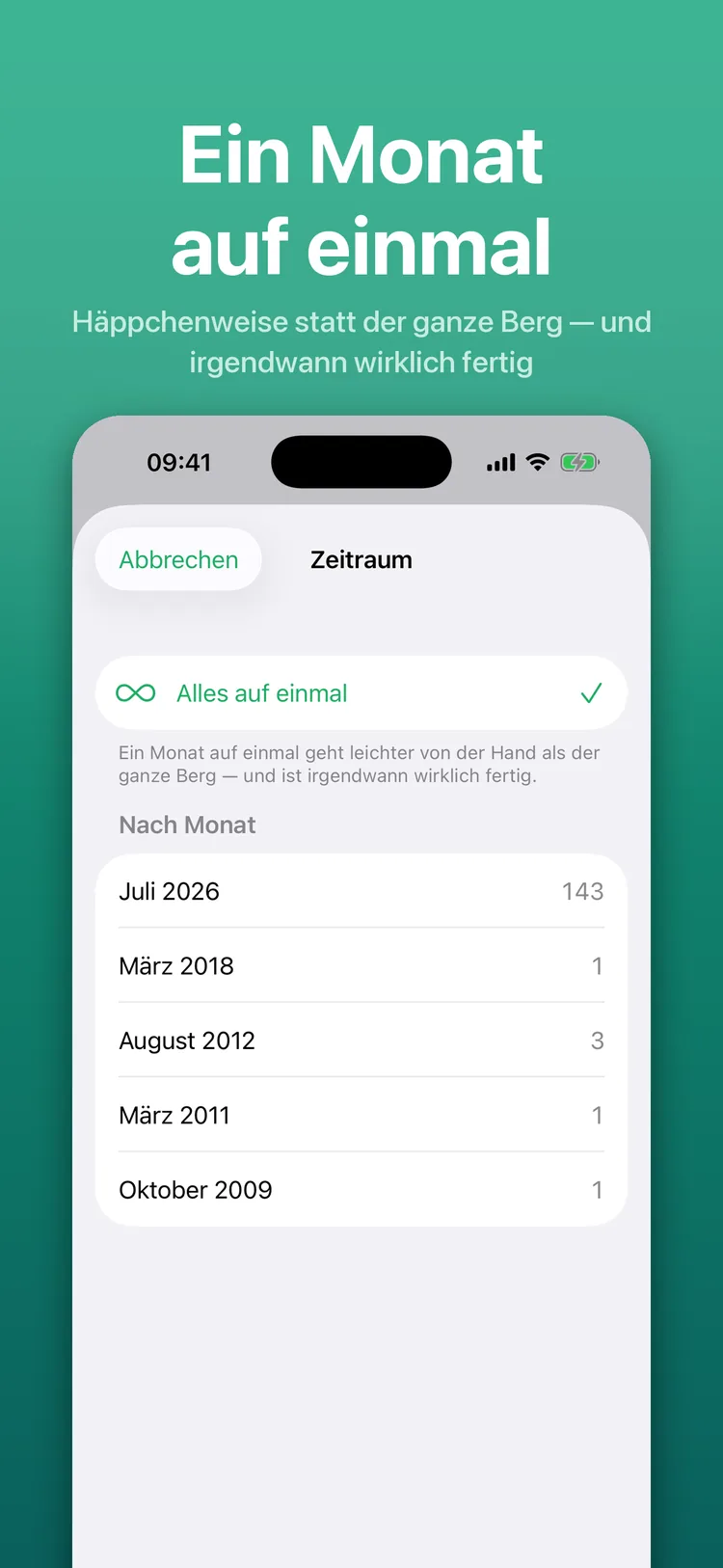
A month can actually be finished
Instead of the entire library you take on a single month. That is manageable, and at some point it is genuinely done.
This is less a feature than a way to make the decision easier: a finished month feels like progress. A pile that got slightly smaller does not.
The screenshots show the app with a sample library.
Why swiping beats tapping
Cleaning up rarely fails because of the tool. It fails because the task looks too big. A grid shows a hundred pictures at once and therefore demands a hundred decisions at once — so you make none.
A card shows one. The gesture is the same one you make all day anyway, it needs no glance at a button, and it works with the thumb of the hand already holding the phone. That is why people keep going longer than they do with small selection checkboxes.
Nothing is deleted until you say so
Swiping left deletes nothing. It moves the picture into the app's own trash, where it stays visible and comes back with a single tap. Only when you release the batch does anything actually leave your library.
That is not just more comfortable, it is considerably faster: iOS requires a confirmation for every deletion. Collect the decisions and hand them over as one package, and that dialog appears once — not for every single picture.
Mistakes are allowed
The undo button takes back your last decision. Anyone who shakes the iPhone gets the same result without looking — handy when you are in a rhythm and your hand was faster than your head.
And if you swipe away a picture carrying the favorite star, the app asks first. A favorite is a deliberate mark; you should not lose one in passing.
Clean up on purpose
Before you start, you decide what goes into the stack at all:
- Videos only — the largest files first, which is where most of the storage sits.
- Screenshots only — usually disposable, and they pile up over years.
- Bursts only — thirty near-identical shots of one scene.
- Everything together — when you want to go through the whole library once.
Then the order: by date if you want to work chronologically, or by file size if this is about storage. The latter pays off fastest — the ten largest videos often take up half of the space in use.
One month at a time
The month mode cuts the library into portions that can be completed. You see how many pictures each month holds and take on one of them.
It sounds like a detail, but it is the difference between a task with an end and one without. Cleaning up that never finishes is cleaning up you eventually abandon.
You cannot judge a video by its still
Videos play directly on the card, with sound and a scrubber to skip ahead. The preview image of a video is its first frame — and that says nothing about whether the camera slips a moment later, or whether something worth keeping shows up ten seconds in.
A burst is one card
Bursts are the reason so many libraries are full: one press of the shutter, thirty pictures. Swiperoll shows a burst as one card — keeping or sorting out then applies to the whole burst.
If you want to rescue individual shots from it, open the burst in full screen and decide picture by picture.
Honest about storage
Deleted photos and videos land in the “Recently Deleted” album of the Photos app and stay there for 30 days. Only then does iOS free the space. If you need the space now, empty that album yourself.
Swiperoll says so plainly instead of reporting a storage gain that does not exist yet. A number that only becomes true in thirty days is not a good number.
What it costs
Nothing. Swiperoll is completely free: no in-app purchases, no subscription, no feature sitting behind a paywall. Whatever the app can do, it can do from the first launch.
| Detail | Value |
|---|
| Price | Free |
| In-app purchases | None |
| Devices | iPhone & iPad |
| Minimum version | iOS 17 |
| Languages | 31 |
| Age rating | 4+ |
What the app is not for
Swiperoll sorts, it does not edit. There are no filters, no crops, no corrections — that is what the Photos app is for. It also does not detect duplicates automatically and does not judge which of two similar pictures is the better one. That decision is yours; the app only makes it fast.
And it does not replace a backup. If your pictures are not already in iCloud or on a computer, take care of that before you start cleaning up.
Your photos stay with you
The app works entirely on your device. It accesses your photo library to show pictures and to delete the ones you sorted out — nothing more happens to them. There is no account, no server and no upload; your pictures never leave the iPhone.
Apple, iPhone, iPad, iOS and App Store are trademarks of Apple Inc., registered in the U.S. and other countries. Swiperoll is developed independently and is not affiliated with Apple Inc.